-
Life Cycle of a Task in PIM
almost 10 years ago
Hello Readers, In this blog I am discussing about the Task Life Cycle . Lets see in details.
Task functionality is the System process of making and distributing the Task within PIM to different users/user-group with the Specific roles. It checks the Progress of Task at each Stage till it Persists in PIM.
Life Cycle of a Task in PIM
Task Life Cycle Can be seen in the following diagram.
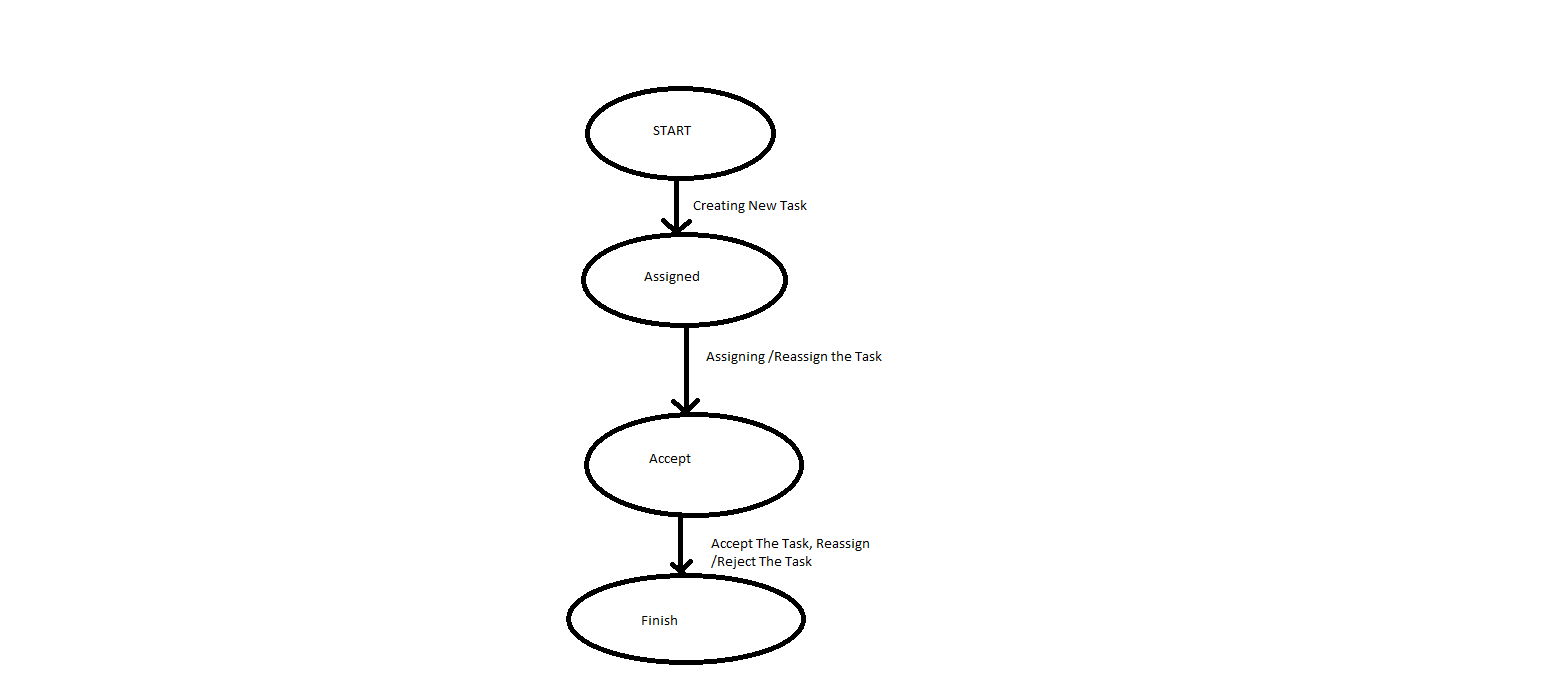
Mainly, Life Cycle of Task can be Categories into 4 stages:
- Start
- Assigned
- Accept
- Finish
Start :
This is the initial phase . In this phase,task is not yet start or terminated.
Assigned :
This is the second phase in which after creation of Task, Task is assign to the respective User or User-Group.
Accept :
This is the Third phase in which User or User-Group Accepts the Task that is assigned to them. Respective user can accept or Reject or Reassign the Task. Reassign of Task can be made when escalation / deadline date had Exceeded.
Finish :
This is Final Phase in which user/user-group had finish their Task. It is necessary to accept the Task in order to Set the Task to be Finished first.
All the Activities such as create, delete,reject, reassign etc process manually but Escalation process cannot process manually. It is Processed by PIM Server.
Escalation Process :
In PIM, When the new task is created, it contains the time limit for completing the Task in terms of escalation date and deadline Date. If the task unable to complete its target then Escalation Process will take Action into this.
With the help of PIM Server, PIM keeps tracks of escalation duration for each task . It takes following Action according to the following rules :
1. When Escalation Date is Less than or equal to 24 hours then
- It sets Task as yellow mark in the View and
- With the help of email notification feature,PIM provide the respective information about the Task
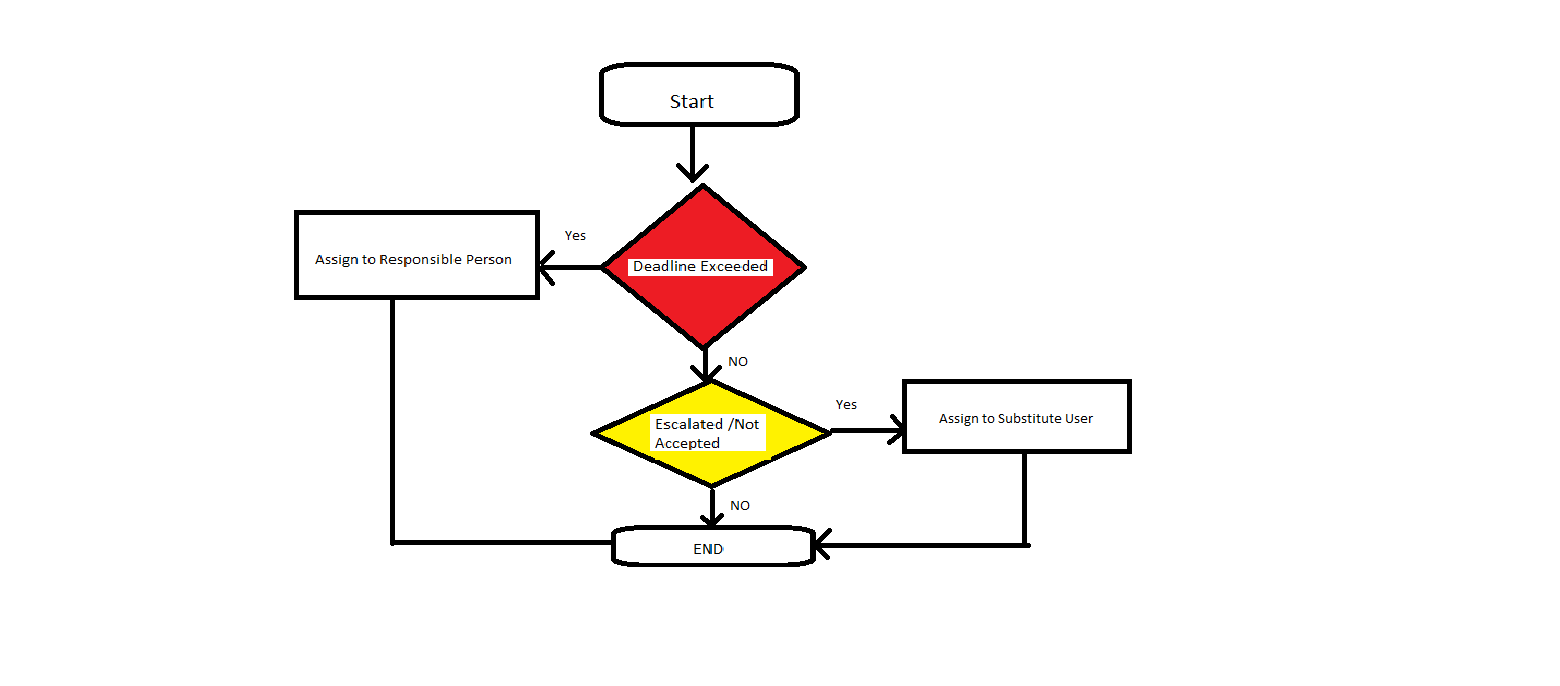
2. When Escalation date Exceeded but deadline Date is not Exceeded then
- It might be possible that Task had not been accepted, so Task will be assign to some other user (as a substitute).
- yellow Mark will remain set in the View, and
- With the help of Email Notification, respective user will be inform about the same.
3. If Deadline Date Exceeded then
- Now The Red Mark will be Set in the View
- If the task had not completed , then Task will be assign to some responsible user. So that Task will get Completed.
- With the help of Email Notification feature, respective user will be inform about the Task Assignment.
These Rule's can be easily understand with the help of following Flowchart


0 Comment(s)