-
Export Format Template In PIM
about 10 years ago
Export Format Template :
During the Export Operation in PIM, format of data is explicate in Export Format Template. Depending on the requirement of Export files, these template are created and and tested. For ex, in Order to generate the BMEcat catalog as Output, we can have a Export Format Template for generating BMEcat file.
Based on the Export Format template, we create the Export Profile and Perform Export Operation.
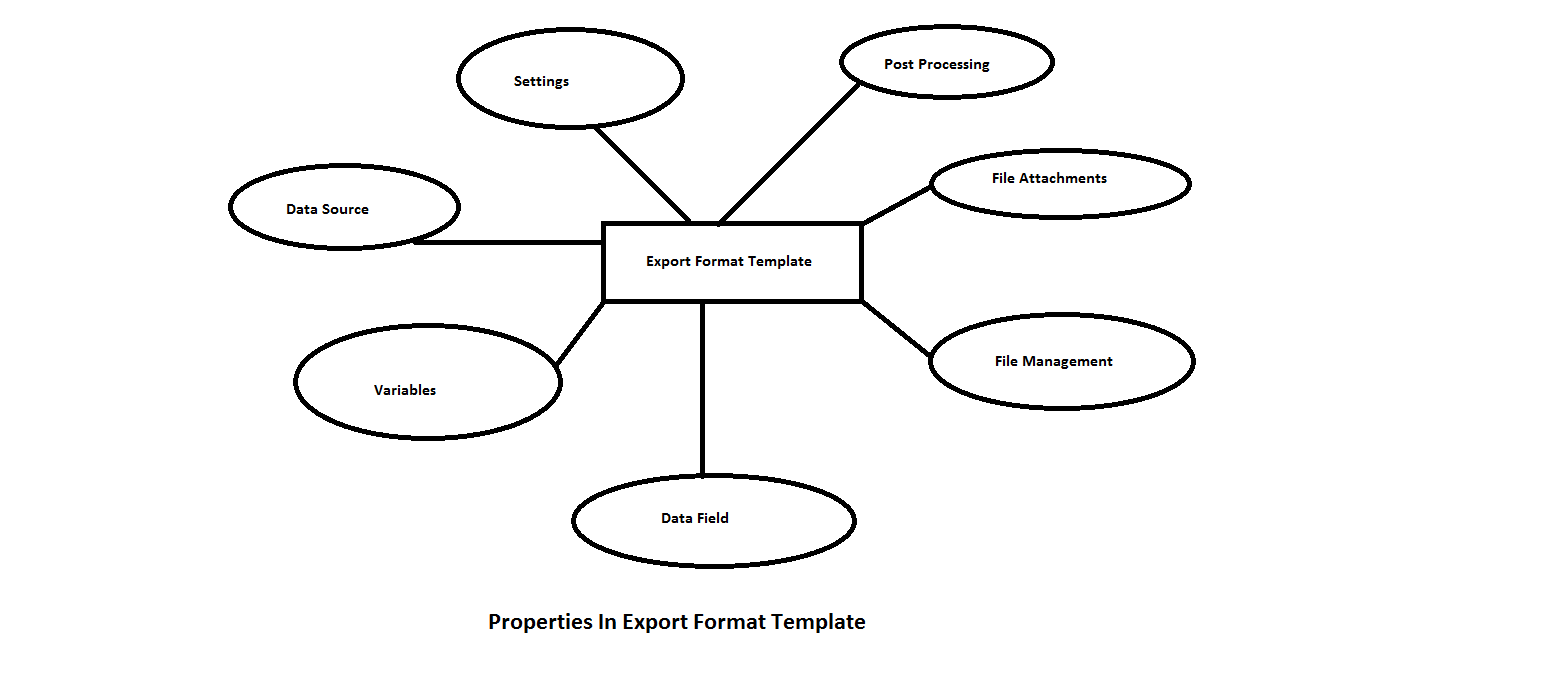
Properties of Export Format Template :
Below is an Overview of Export Format Template properties:
- Settings: This is the first preview that we obtain from view Properties to create the format of Template.
- Data Source : In this module, Registration of Data Source is carried out.
- Variables : Here, we use to define the additional variables.
- Data Field : Used data fields is displayed in this module.
- File Managements: In this, handling of export files are specified here.
- File Attachments: Export of Multimedia Attachments is defined here.
- Post Processing: After the Export operation,Additional activities are performed here.
Lets Discuss these in details :
Settings:
Here we create the format of the Export Template. Selecting the Particular format to be output say HTML, then it provides the Automatically Extension of that format so that it is compatible with that application for instance, browser to display HTML content. The Properties that are available in the Setting Tab are as follows:
- Name : Specify the Name of Template
- Format: Here we provide the Output format like HTML, CSV, TXT, etc.
- Encoding : It provides the List of Character Set Selection like UTF 16,UTF 8 etc.
- Format Mapping Table :Format Mapping Table are controlled under the Mapping Format . This Perspective can call by Management -> Format Mapping Table. This helps in replacing actual data from the Table to the Catalog specified.
- Description: Specify Description for The Template. This Description will helps other users to manage Export Template.
- Preview: If we checked mark this option , this template will provide preview function with the limited rows for detail view.
- Logging in the Export Log :If we checked this option, then this will provide Errors,warnings etc.
- Logging Directly in the Export File :If we checked this option, this will help us in tracing cause of error during the complex Templates.
Data Sources :
It provides the List of Data Source that We can configure to include in the Template. The Specific properties involves are described under this head :
- Data Sources:It list all the Data Sources which are assigned to the Template. On selecting particular data Sources , the Name and Parameter can be viewed on the Right Side. Multiple Data Sources can be Assign. Even Same Data Source can be used multiple times but with different Name.
- Name:We can assign the Name of the data Source.
- Parameter : It lists all the Parameter for the Selected Data Source. The Values can be either filled manually or by using drop- down menus. Some Of the Parameter can be marked as mandatory Parameter implies that Parameter are changeable so such parameter will be displayed in the Export Profile which can be assigned during Export Scheduled.
File Attachments :
If we are planing to Export Multimedia in a zip format, then we Prefer to Manage such problems under this Heads by following three points:
- Use “ExportMime” export function which enables to choose file attachments as output.
- On the “File Attachment” tab, Check this option “Query File Name with multimedia Server” and specify the corresponding setting.
- Assign the “File Attachment Export” to Export Format Template. This will carry out the file attachment into Multimedia Archive.
Variables:
“Variables” are those Export Elements which are added in to provide extra Information in the Output catalog. These Variable are checked as “Editable Item” Which implies this will appear as additional parameter in the Export Profile.
In Order to Manage Export Element follow the following steps:
- Select New → To create New Variable.
- Assign a Unique Name to this Export Element.
- Provide a short Description.
- From the Drop down menu select the “data type” which provide the description which type of this Export field is this.
- In the “Value” tab Left it blanks in order to fill latest value during Export Scheduling. And Checked this filed as Mandatory filed/Editable .
Data Fields :
Here as stated above, It contains all the Data Field that we are require in the Output catalog. This Tab List all the Fields along with this its properties. Here we can specify, The Name, Description, and Specify the Validation Rules for the Specific Data Fields. In order to Manage the Data Fields properties follow the following steps:
- Select the Data Field
- If we wanted to have look under this properties of Data Filed We can click on Arrow , which will show us inner data field in a tree Like Structure.
- To Edit, Click on Properties.
- A Dialog Box will Appear.
- Make Changes in the Properties.
- Click OK to Save The Setting make.
File Management :
If we want to manage the “Name of Export File” we can manage such issue under this head. By defaults, this will choose the name of Export Template.
If we want to handle multiple Data Files then we need to check “Extended Option”.
In this We can specify
- the Name,
- Format, and
- Encoding format of Export Files.
Post Processing :
Post Processing is nothing but what we are trying to do or what we want to do after we have completed with the Exported File. For example we are trying to copying a exported file to some other directory or we are trying to validate Exported XML file.
Properties under Post Processing are as follows:
- Export Steps : In this we schedule the Post Export steps with the help of Export up and down arrow.
- Name: Name of the Export Step
- Parameters : here we configure Parameters of the Selected steps. If we mark this as “mandatory parameters” then this implies that it will be editable and will be Available in the Export Profile.
Thanks for Reading The Blogs.


0 Comment(s)