-
Email Notification In PIM
almost 10 years ago
Hello Readers,In this blog, I will guide about the E-Mail Notification functionality for Task in PIM.
Email Notification In PIM
- In PIM Desktop, The Tasks view helps in displaying tasks created manually or by a workflow in a hierarchical structure.
- Each activity performed in PIM is related to the some tasks that involves different roles in it. Some Activity is usually assigned to some person who is responsible for completing its tasks within in a specified time Limit.
- But in addition to Assign a task, there is a person who monitor and substitute a task, and will interpose himself/herself if the task doesn't complete in a specified time.
- Usually, a task is a series of activities which hold status of start-up or completion of Task in PIM.
- So in order to prompt to the user ,involved in completing the task, about the status of task , Email Notification came in use.
- It helps us to send an email to the Particular user or a Particular user-group to whom the Task is assign based on the Status or Occurrence of The Events and specific role.
- In PIM, it provides predefined or customized email templates to be stored in the system (Independent of Language Dependency).
- There are three different notification Levels .We need to Set one of these level as default.
Pre-conditions :
In order to Manage Email Notification, It is necessary to fulfill following Conditions :
Server Configuration
- Valid Email Server to be specified in server.properties files
Permission : Following permission must be set by administrator to access this functionality
- Manage E-Mail Template : Provides the control feature to user or user-group for creating, editing, and deleting the Email Template.
- Configuration Email Notification : Provides the Control to users to change which role of a task will be notified for which events.
- Setting The Notification Level : Provides the control to change the Notification Levels of the events.
How to manage Email Notification ?
Task Notification perspective is used to manage the templates for different companies to specific task Events.
This Perspective provides the window which is divided into 3 section
Left Section : In this section, all the templates are available for the different tasks. These templates can be customize or delete or rename as required.
Right Section: This Section is divided into two parts:
- Top Section: This section provides a HTML source code for the template which w can configure as required.
- Bottom Section : It provides the preview of email , the way template look like.
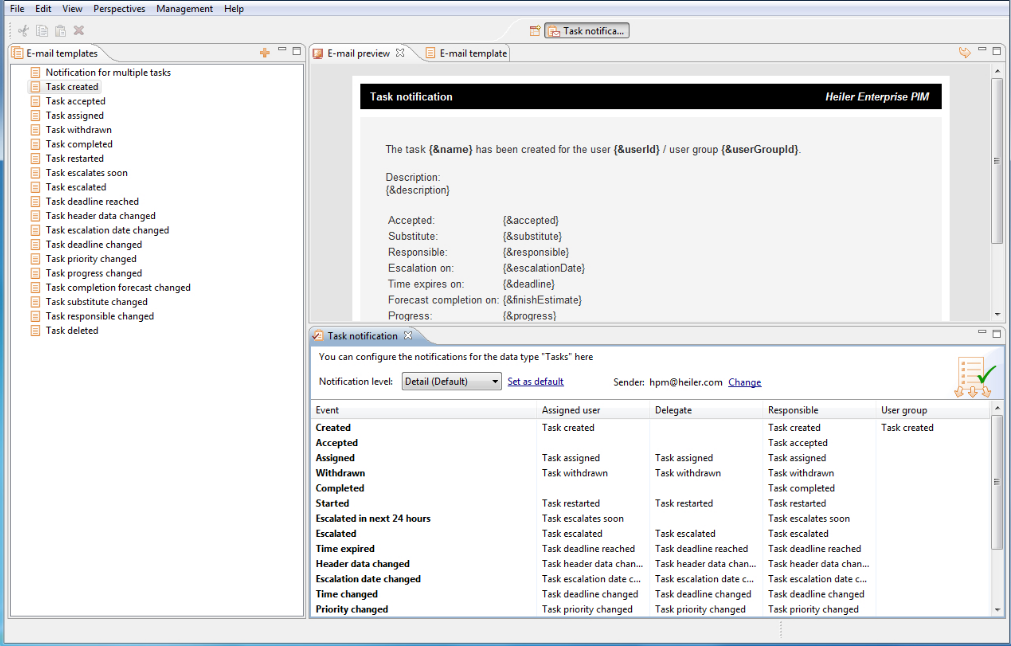
How to Create Email Template ?
In order to create New Template Follow the following steps:
- Enter the Title of Template in Subject Line
- Use the HTML source code, in order to edit the Template.
- The Template Preview can be seen in the Preview Section
Task Notification
In this View,We can use to set Configuration of various Notification Levels. And Specify The Default Notification Levels displayed in dialog box. Task Notification Perspective contains
- Events,
- Assigned User,
- Substitute,
- Responsible and
- User Group.
So For each event and Notification Levels we can specify who is to notify by email. In order to do so
- Click on the respected field of Event
- Make Changes according to required Template provided in the pop-up window.
- Finally click On Save .
Notification Level Setting :
- It represents the configuration for amount of Notified Events.
- By default, None is set implies notification is disabled.
- In order to receive notification, we have to specify in the “Task Notification” view.
Thanks for reading this blogs...


0 Comment(s)